Ultimate Movie - Self-Hosted Movie & Web Series Streaming PHP Script
A complete, self-hosted PHP movie streaming platform with a modern poster-style catalog design. Multiple categories per video, multi-quality player (1080p-360p with in-browser auto-conversion), skippable ads, Smartlink monetization, and a built-in Search & Replace tool — ready to install on any shared hosting in minutes.
✓ Recently Updated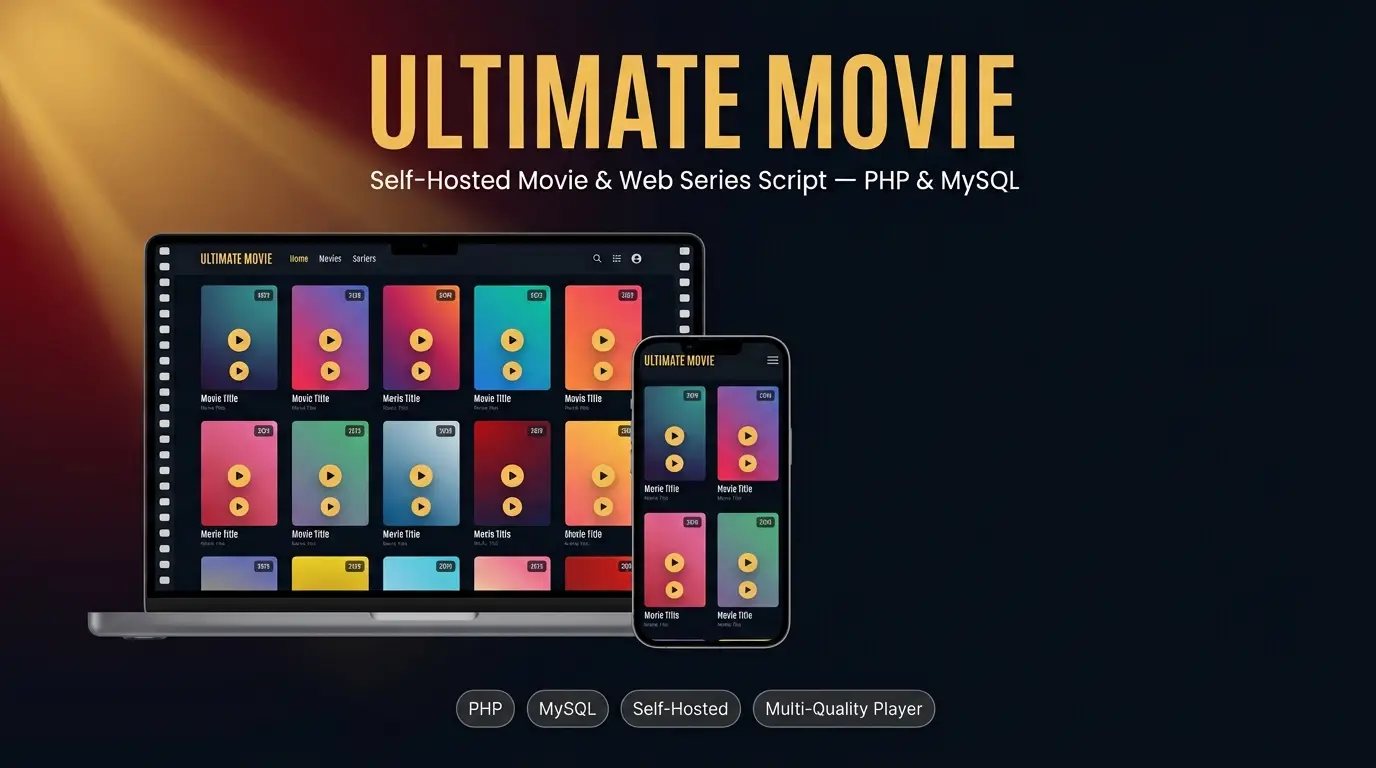 🔍 View full screen
Description
Ultimate Movie is a ready-made website script for running a video/movie content site. You do not need to know how to code. Everything is controlled from a simple Admin Panel: adding videos, organizing them into categories, writing pages, changing the site's look, and setting up ads.
The script is self-hosted, which means it runs on your own hosting account (like Hostinger, any cPanel host, free hosting, or a VPS) instead of depending on a third-party platform. You own the code, the database, and all the content.
The video player is built on Plyr, a widely used open-source player, so playback, fullscreen, keyboard shortcuts, and quality-switching all work the same reliable way real streaming sites use.
Features
Visitor-Facing Website
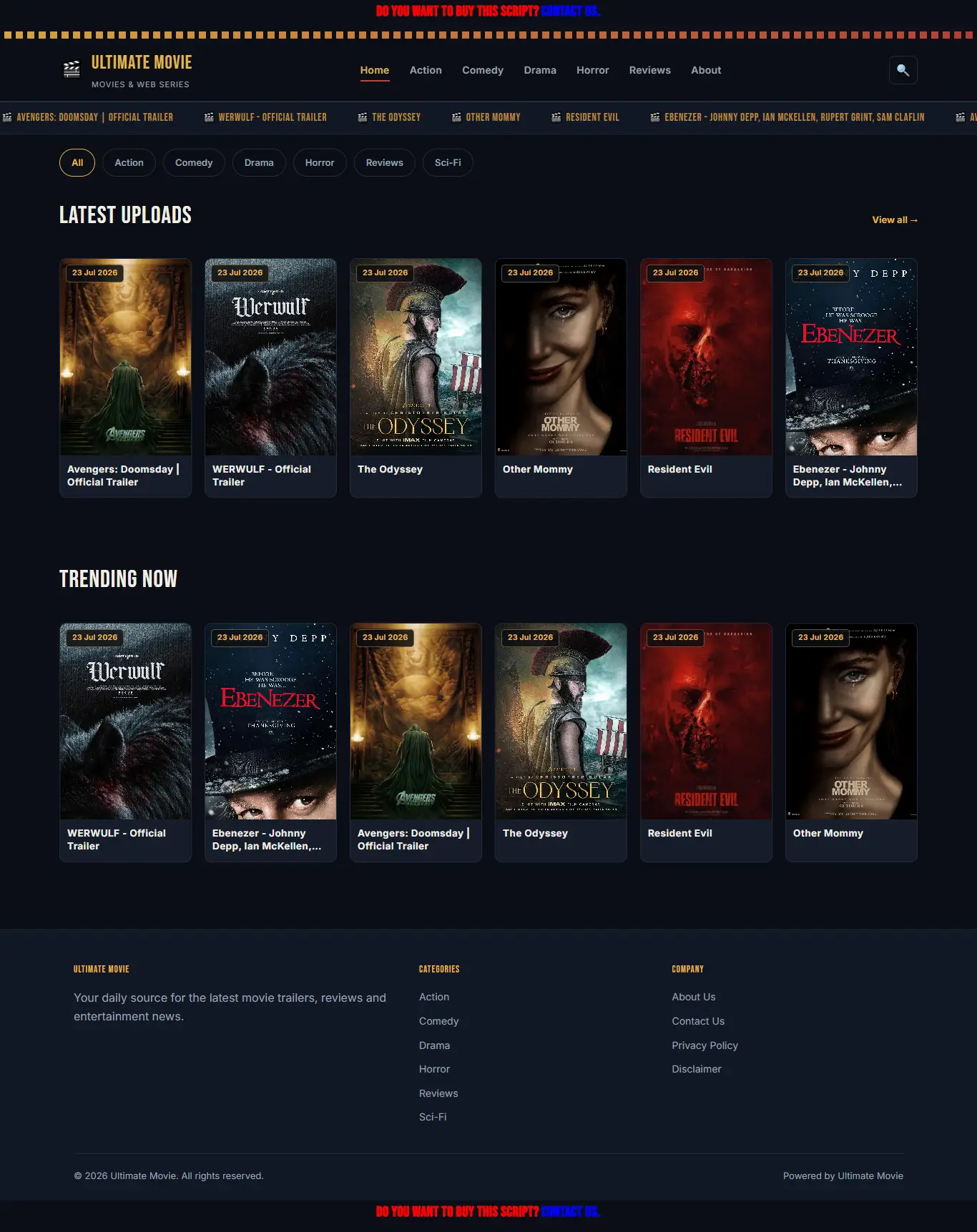
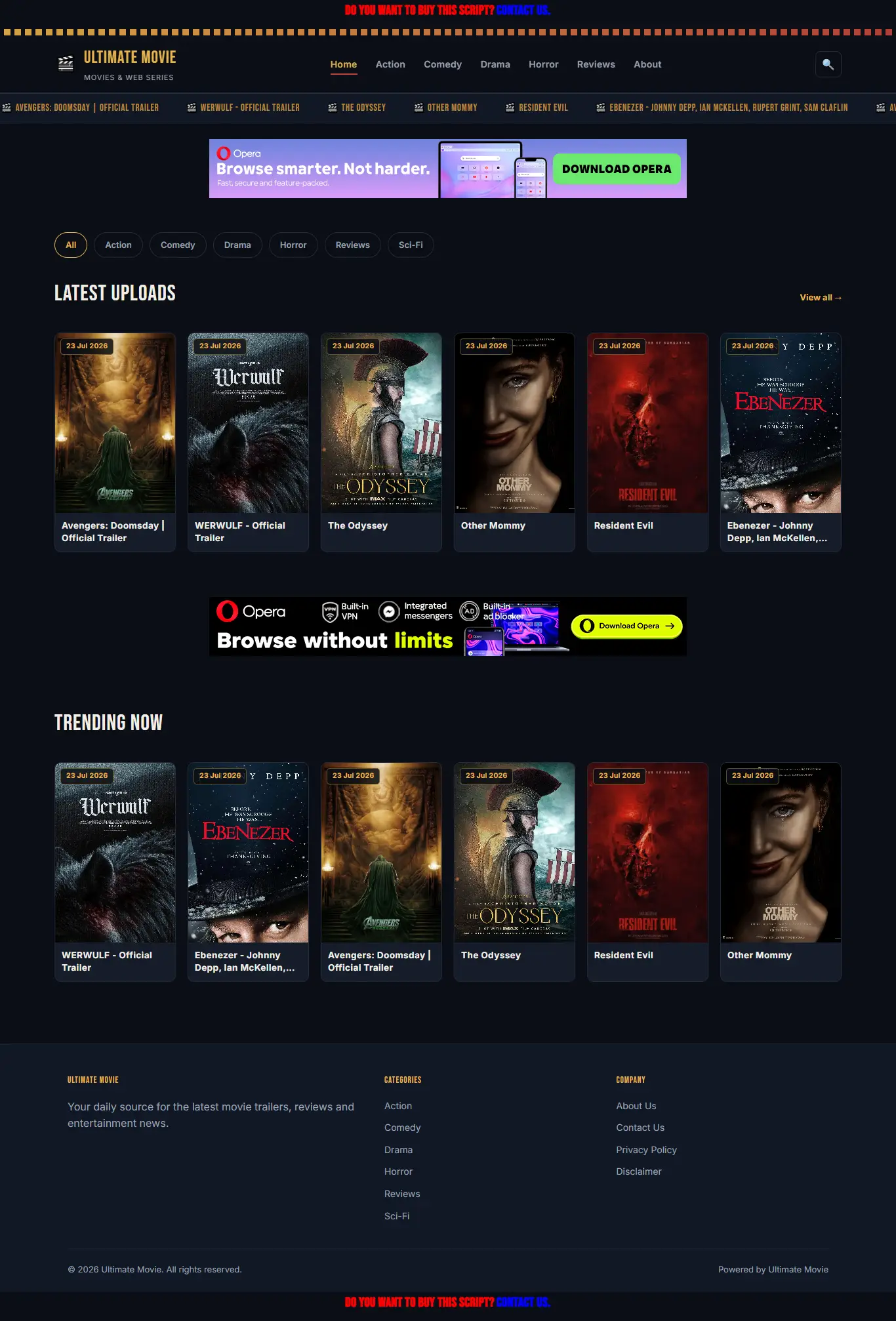
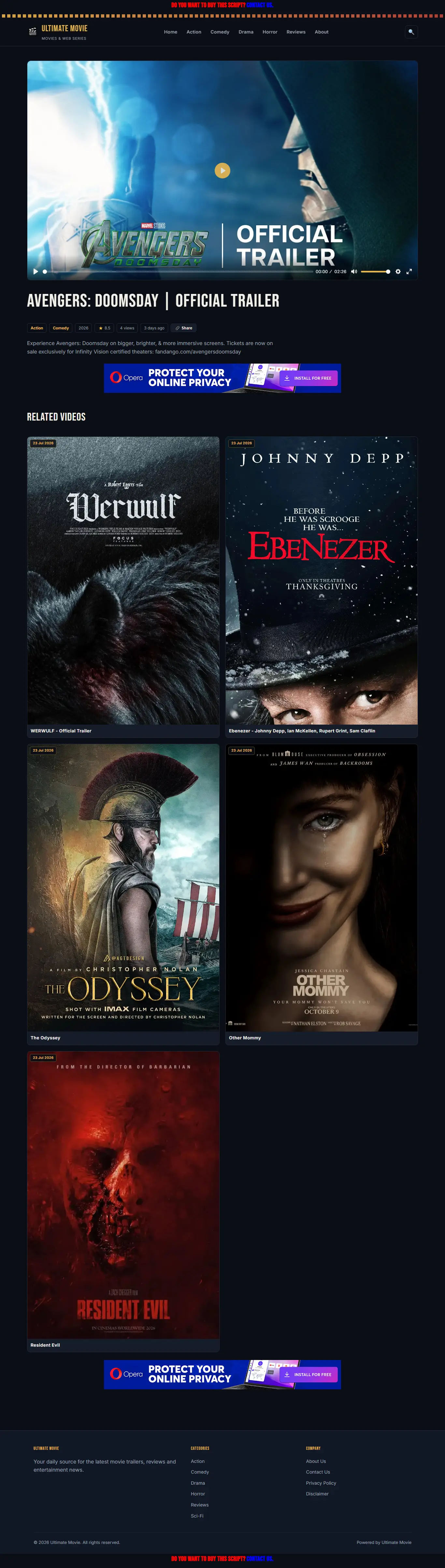
- Clean, dark "cinema" themed design with poster-style video cards, working on mobile, tablet, and desktop
- Hamburger menu navigation on mobile
- Homepage with latest uploads and trending videos
- Category browsing pages — a video can belong to more than one category at once
- Search box
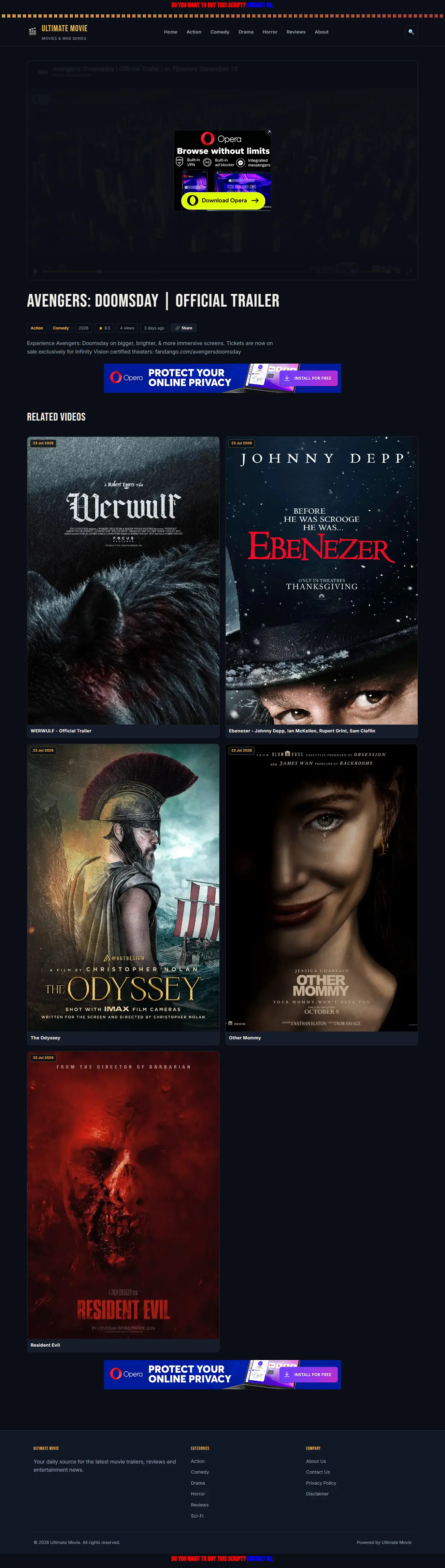
- Video pages support two video types: embedded links (YouTube/Vimeo/others) and direct video upload with a built-in player
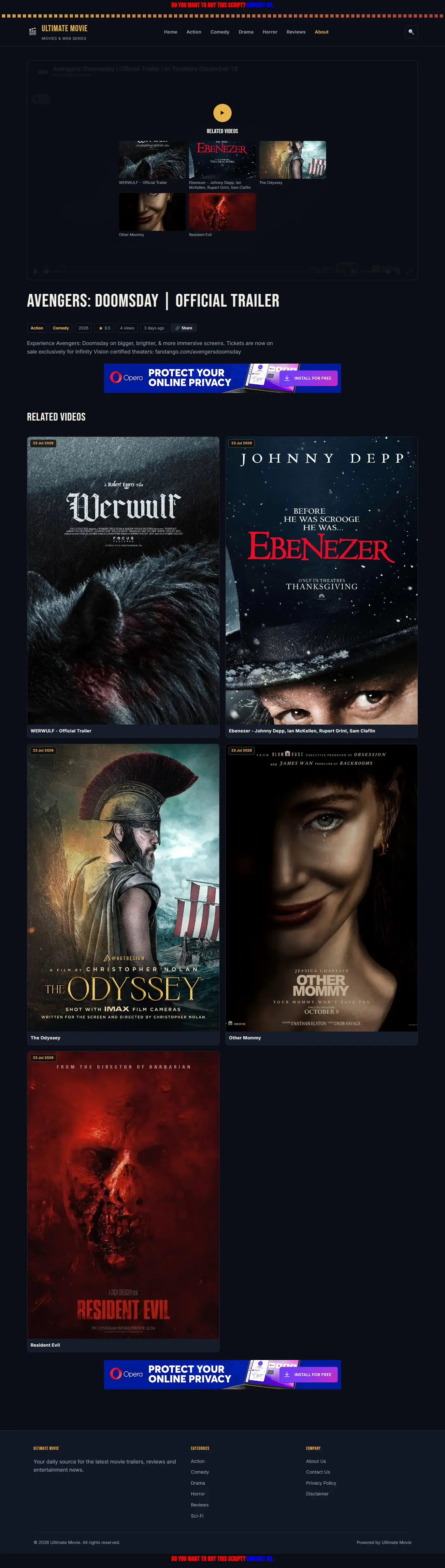
- Random "Related Videos" section under every video, and also over the player when it's paused
- Clean, short web addresses — e.g. yoursite.com/movie-name, yoursite.com/category/action, yoursite.com/about-us
- Built-in About Us, Contact Us (with working contact form), Privacy Policy, and Disclaimer pages
- Custom 403 and 404 error pages that match your site's design
Video Player
- Built on Plyr — reliable fullscreen, keyboard shortcuts (spacebar to play/pause), and a proper Settings menu, fully self-hosted (no external service)
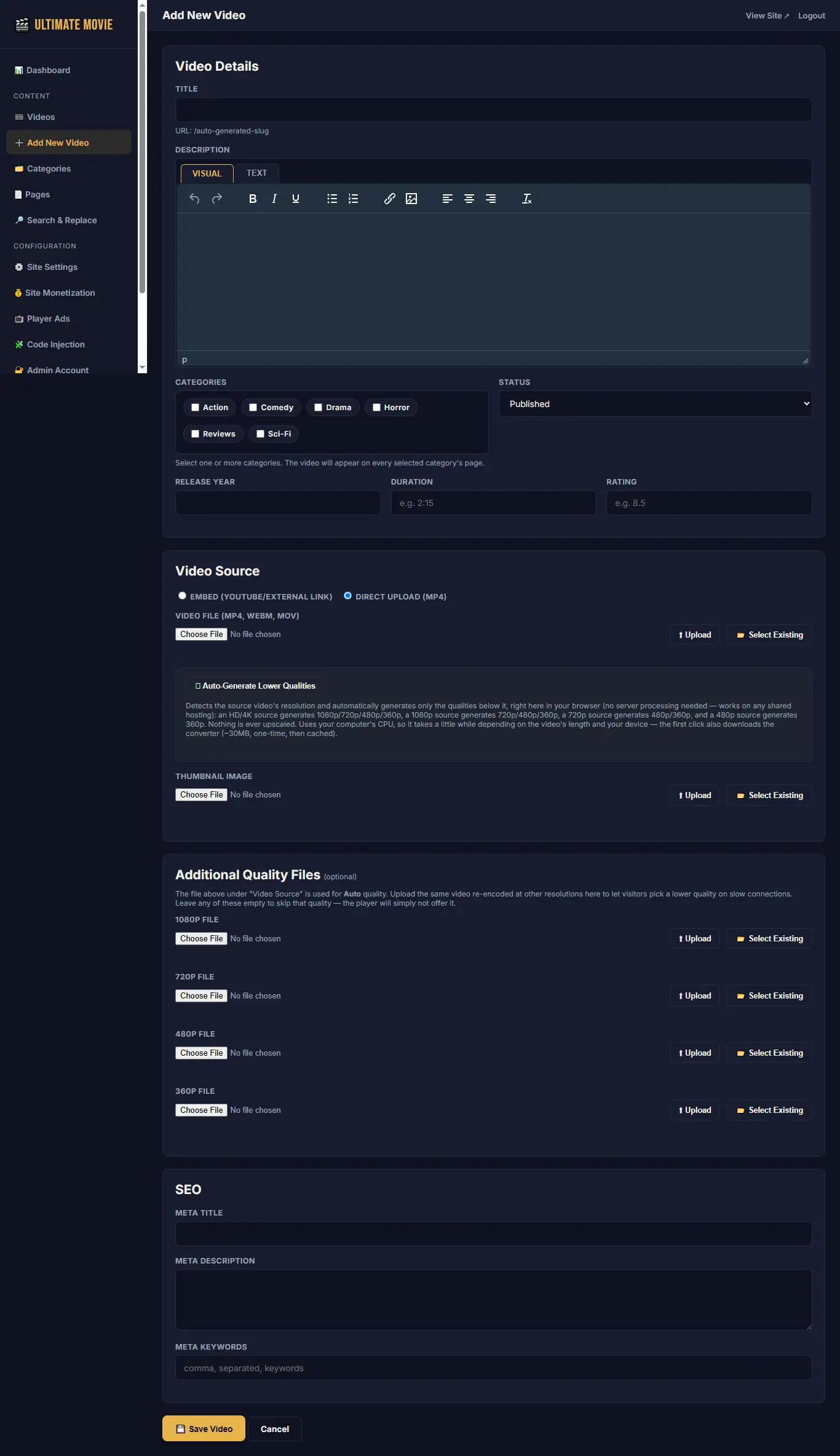
- Direct-upload videos can offer multiple resolutions — 1080p / 720p / 480p / 360p / Auto — switchable any time from the player's Settings menu
- Playback automatically starts at a quality that matches the visitor's connection speed; the visitor can still change it manually at any time
- Right-click on the video is disabled (toggles play/pause instead) and there is no "Download" option in the player, as a deterrent against casual saving/copying
- YouTube and Vimeo links play through Plyr's own integration, so the ad-timer and pause-overlay features below work on those too, not just direct uploads
Skippable Player Ads & Smartlinks
- An optional skippable 300×250 banner ad over the player at a timer you control
- A small "✕" button on the ad lets the visitor skip it and keep watching
- An optional "Smartlink" system: the first two clicks on the player open a rotating ad link in a new tab, and the third click plays the video — 5 link slots that rotate evenly across visitors
Admin Panel
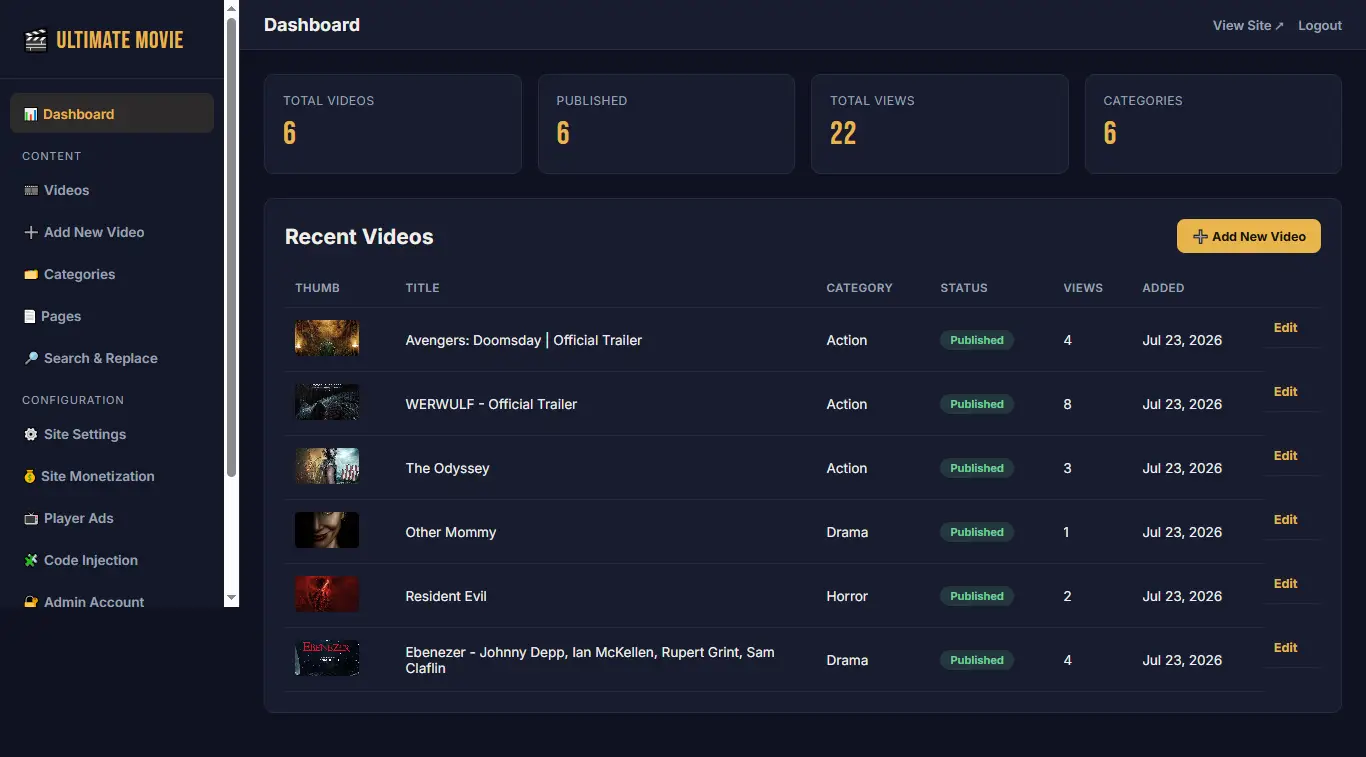
- Simple dashboard showing total videos, published videos, total views, and categories
- Add, edit, and delete videos — with a modern editor and multi-category selection
- Add, edit, and delete categories and custom pages
- Change your login email/password, site branding, and website address at any time
- An "Upload" button next to each file field uploads it immediately in the background, so Save happens quickly
- A "Select Existing" media picker lets you reuse an already-uploaded video or thumbnail instead of uploading again
- A "Remove" checkbox next to any attached file deletes it from the server when you save
- A Search & Replace tool for bulk find/replace across your whole site's content
- Everything works on a mobile phone too — the admin panel is fully responsive
SEO Tools
- Editable meta title, meta description, and keywords for the whole site, and per video/page/category
- Canonical tags, Open Graph tags, and Twitter Card tags on every page
- Schema.org structured data (WebSite and VideoObject)
- Automatic, always up-to-date XML sitemaps, split for large sites: /sitemap.xml (index), /page-sitemap.xml, /category-sitemap.xml, and /post-sitemap1.xml, /post-sitemap2.xml, and so on automatically (200 videos per file)
Monetization
- A "Site Monetization" page for homepage/video-page banner ads (up to 3 slots)
- A separate "Player Ads" page for the in-player skippable ad and the Smartlink rotation
Code Injection
- Paste your Analytics code once — it applies to every page automatically
- Custom "Header Code" and "Footer Code" boxes for anything else you need to inject site-wide
Performance and Caching
- Every page sends correct cache headers, so browsers and hosting-level caches always show your latest content
- CSS/JS (public site and admin panel) automatically get a fresh version number whenever updated
- Uploaded video files get browser caching headers for faster repeat views/seeking
- Video playback starts at a connection-appropriate quality automatically
Benefits
You Own Everything
No monthly platform fees, no third-party lock-in. The code, design, database, and every video run on your own hosting account.
Works on Cheap Hosting
Runs comfortably on affordable shared hosting or free hosting, as well as any VPS. Even multi-quality video conversion works without special server software.
No Coding Needed Day-to-Day
Adding videos, pages, and categories, changing branding, and managing ads is all done through simple admin panel forms.
Search-Engine Friendly
Clean URLs, full meta tag control, structured data, and automatic sitemaps give your site a real chance to rank in Google.
Ready to Monetize
Banner ads, an in-player skippable ad, and a Smartlink click-gate — drop in codes/links from any network in minutes.
Flexible Organization
Videos can belong to multiple categories at once, and a Search & Replace tool makes site-wide content updates painless.
How to Use It
Log in at yoursite.com/admin/ with the email and password you set during installation.
1- Categories (Multiple per Video)
Go to Categories to add a category (name, optional description and SEO fields). When adding or editing a video, you'll see all your categories as a row of checkboxes — tick as many as apply. The video will then appear on every one of those category pages, and all of them show as clickable tags on the video's own page.
2- Adding Videos
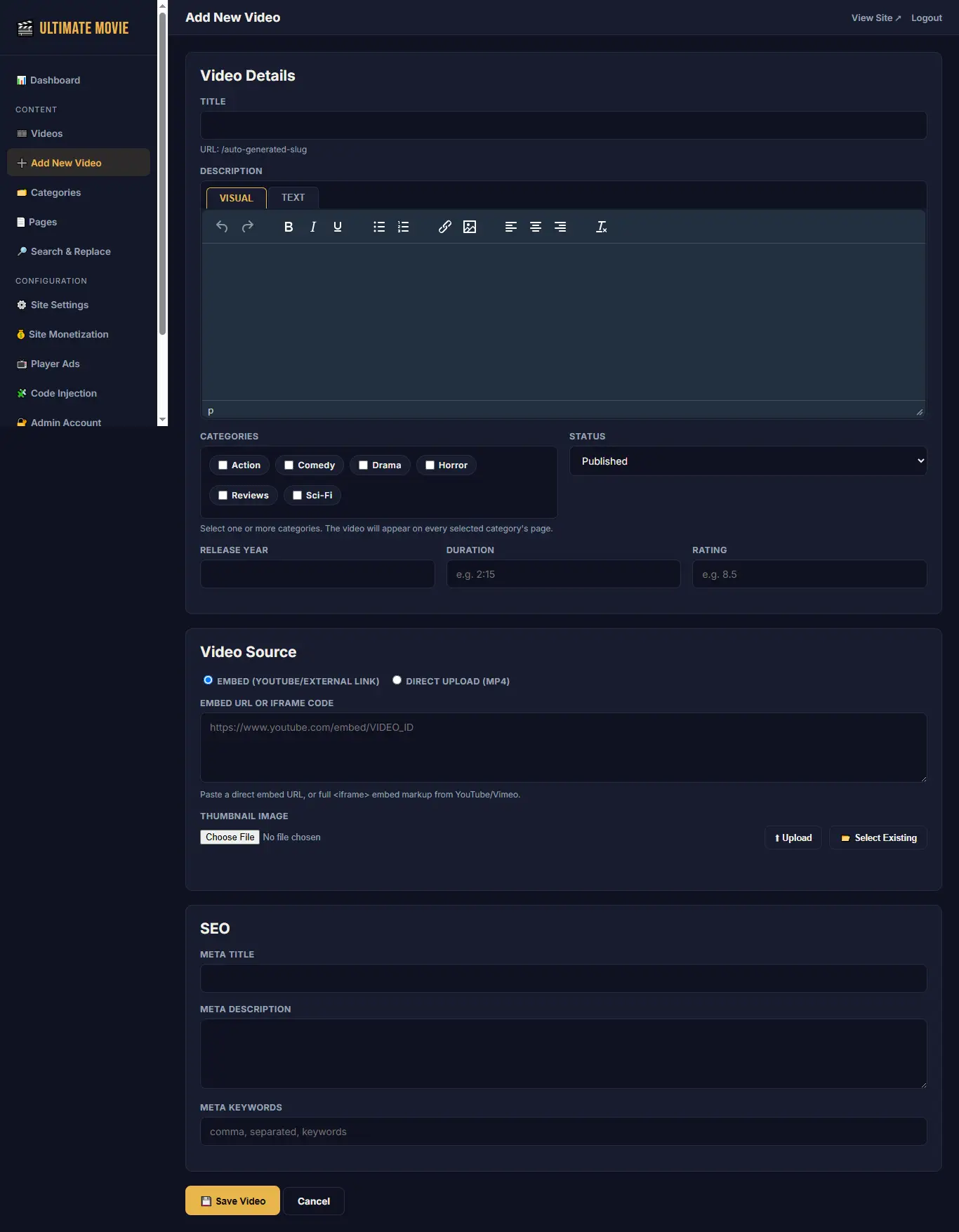
- Click Add New Video in the sidebar.
- Enter the title — the clean web address is generated automatically.
- Write the description using the Visual/Text editor (see 4.3).
- Tick one or more categories, and set the status to Published or Draft.
- Under Video Source, choose Embed (paste a YouTube/Vimeo link) or Direct Upload (upload a file, then click Upload to send it right away).
- Add a thumbnail (upload or Select Existing), and optionally extra quality files (see 4.6).
- Fill in SEO fields if desired, then click Save Video.
3- The Editor
Both videos and pages use a WordPress-style editor with two tabs: Visual (a normal formatting toolbar — bold, italic, lists, links, images) and Text (raw HTML source for advanced edits). Switching tabs keeps content in sync both ways.
4- The Video Player
- Quality menu — appears in the player's Settings (⚙) menu whenever a video has more than one quality file uploaded.
- Starting quality — chosen automatically from the visitor's connection speed; their manual choice always takes priority afterward.
- Fullscreen — keeps the ad and related-videos overlays working correctly, including on iPhones.
- Keyboard — spacebar toggles play/pause anywhere on the page.
Connection speedStarting qualitySlow-2G / 2G360p3G480p4G (moderate)720p4G (fast)1080p / best available
5- Player Ads & Smartlinks
Go to Player Ads in the sidebar. Turn on the skippable banner ad, set the interval in seconds, and paste your 300×250 ad code. Separately, turn on Smartlink and fill in up to 5 URLs — the first two clicks on the player open one in a new tab (rotating fairly), and the third click plays the video. Leave either off if you don't want it.
6- Multi-Quality & Auto-Generate
On the video screen, an optional "Additional Quality Files" panel has fields for 1080p/720p/480p/360p. Fill these manually, or click 🪄 Auto-Generate Lower Qualities to have your browser convert the video automatically (no special server software needed):
- HD/4K source → generates 1080p, 720p, 480p, 360p
- 1080p source → generates 720p, 480p, 360p
- 720p source → generates 480p, 360p
- 480p source → generates 360p
Nothing is ever upscaled, and each file uploads itself automatically once converted.
Good to know: this uses your own computer's processing power, so it takes a few minutes depending on video length and device, and the first use downloads a one-time ~30MB converter. Very large files may be slow or fail on older devices — the manual upload fields always work as a fallback.
7- Media Library
Select Existing opens a browser of everything already uploaded, so you can reuse a file instead of uploading it again. A Remove checkbox next to any attached file deletes it from the server when you save.
8- Social Sharing
Every video page has a Share button with a copyable link and one-click buttons for WhatsApp, Telegram, X, Facebook, LinkedIn, Reddit, and VK.
9- SEO Tools
Fill in meta fields wherever you see them. Submit yoursite.com/sitemap.xml once in Google Search Console — it always reflects your latest content automatically.
10- Search & Replace
Go to Search & Replace to find and fix a word, link, or piece of code across your whole site at once — video titles/descriptions/embed codes, category text, page content, and site settings (like header/footer code). Search first to preview every match, choose which ones to change, then replace only those. A regular-expression mode is available for advanced patterns.
Back up your database first (phpMyAdmin → Export) before using Replace — it edits the database directly and can't be undone.
Security & Anti-Copy
Domain License Lock
Your domain is automatically saved as the "licensed domain" during installation (editable any time in Site Settings). If the site's files are copied to a different domain, visitors there see a "not licensed for this domain" notice — the admin panel itself always stays reachable so you can update it yourself if you legitimately move domains.
Video Save/Copy Deterrents
- Right-click on the video is disabled and toggles play/pause instead of showing a save menu
- No "Download" option in the player's controls
- Picture-in-Picture shortcut and drag-out-of-page are both disabled on the video element
Please read: these are reasonable deterrents, not unbreakable protection. Anyone who legitimately owns a copy of the script has full access to the code and could remove these checks; any video played in a browser can, in principle, be captured through other technical means. Treat this as raising the bar for casual copying, not guaranteed DRM.
 ShortMyLink + WP Safelink Bundle - PHP URL Shortener & Monetization Script
 WP Safelink - WordPress Multi-Step Safelink Plugin for ShortMyLink
 Popunder Smart Rotator - Stealth Ad Script for Website Monetization
 Ultimate Movie - Self-Hosted Movie & Web Series Streaming PHP Script
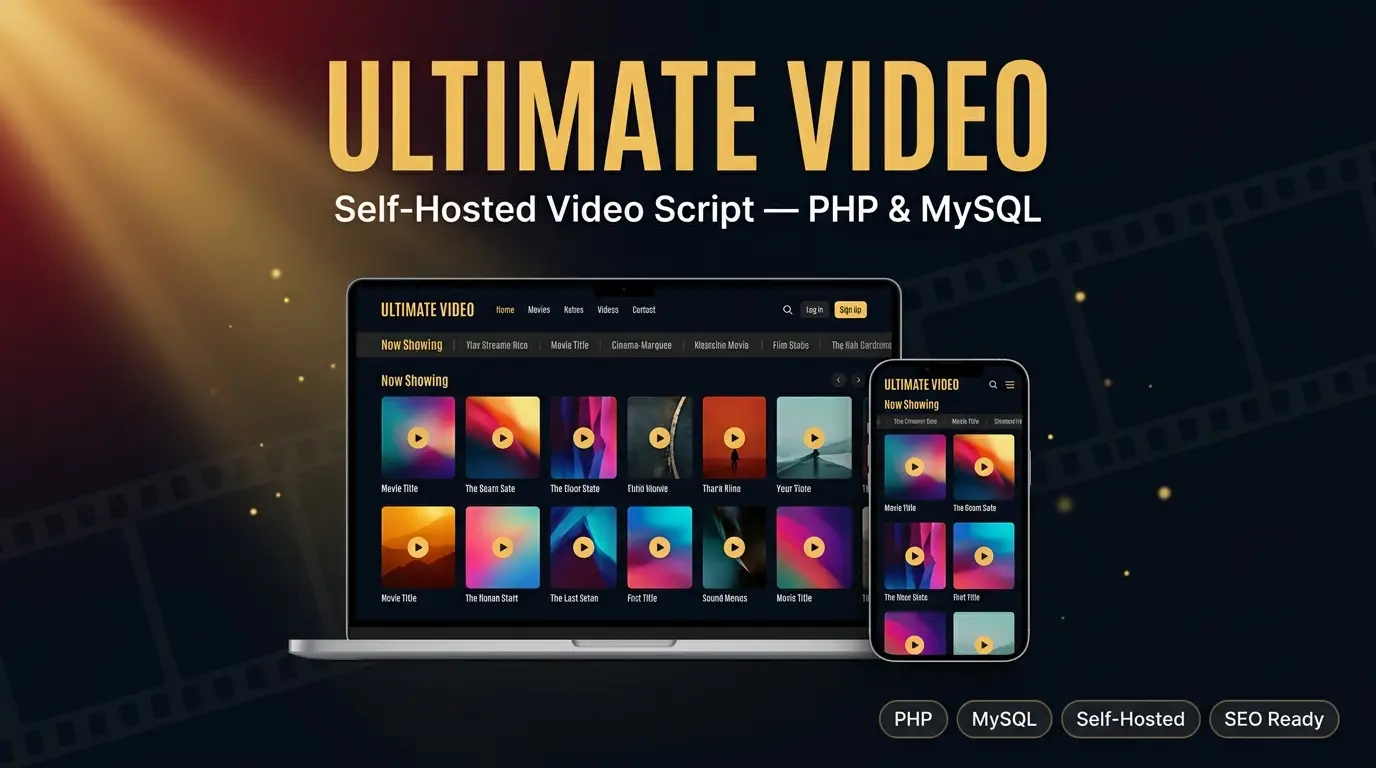 Ultimate Video - PHP Script for Trending and Viral Videos